 Naazhi
Tasks
LivePlan your day. Then do it.
Sort work into lists, set a priority from urgent to low, and repeat what repeats. See it as a list, a board or a calendar, whichever suits the day.

What you get
Tasks, done properly.
Lists and priorities
Sort work into lists and set priority from urgent to low.
Repeats
Daily, weekly or on the 2nd Wednesday. Finish one and the next appears.
Three ways to look
List, board or calendar, whichever suits the day.
Keyboard first
Q to add, G then T for today, 1 to 4 for priority.
Today
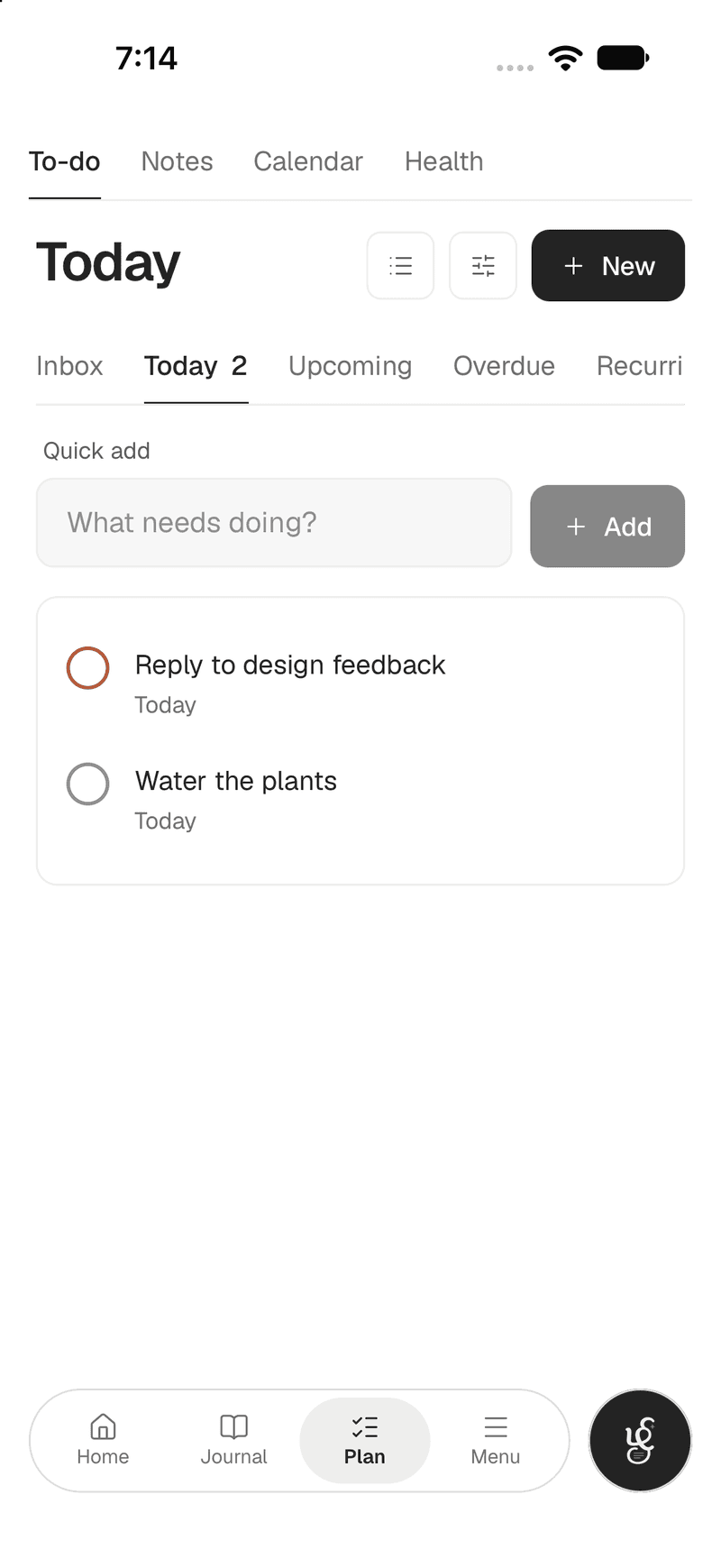
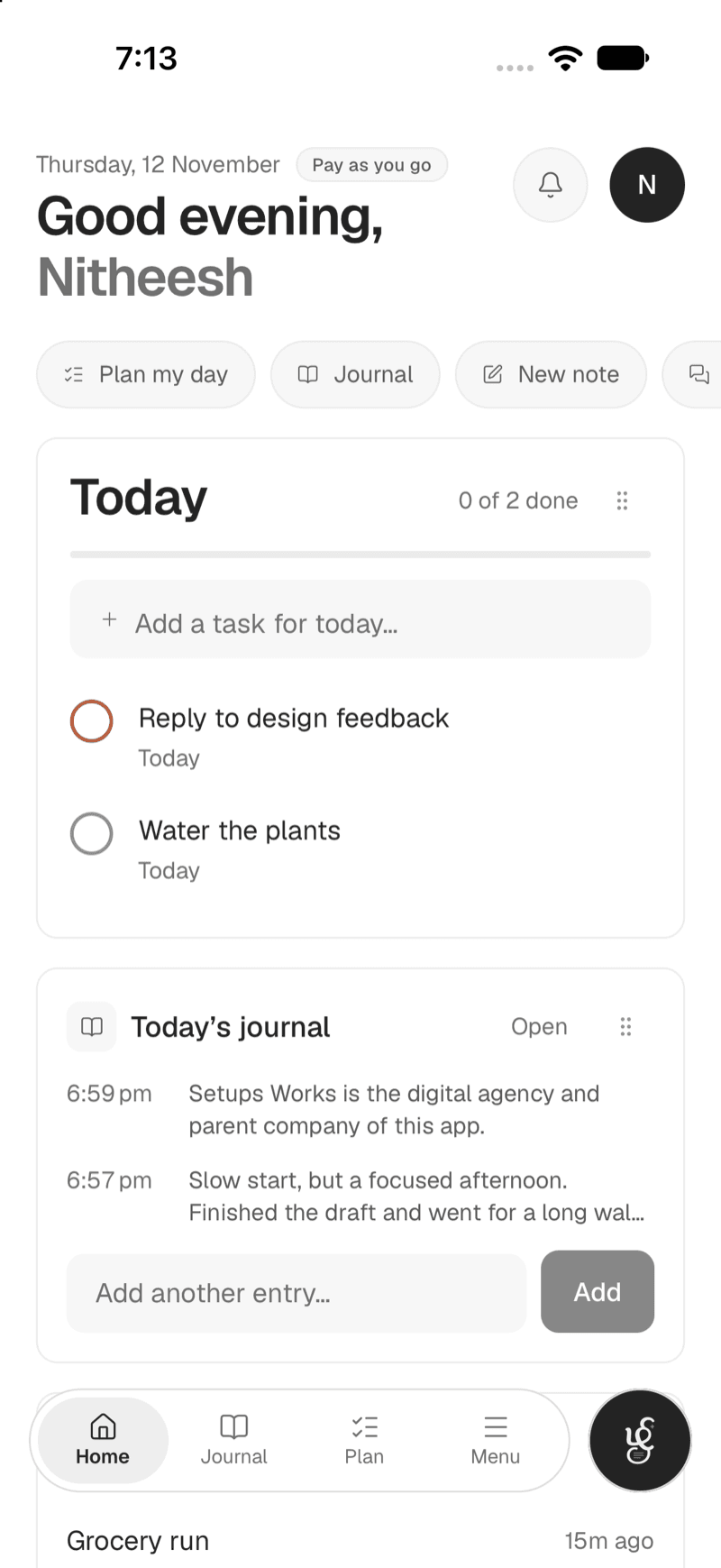
Add it in a second, tick it off in one more.
Quick add sits at the top of Today, so a task takes one line. Tick it off when it is done.
- Quick add on Today
- Inbox, Today, Upcoming and Overdue
- Priorities from urgent to low
Calendar
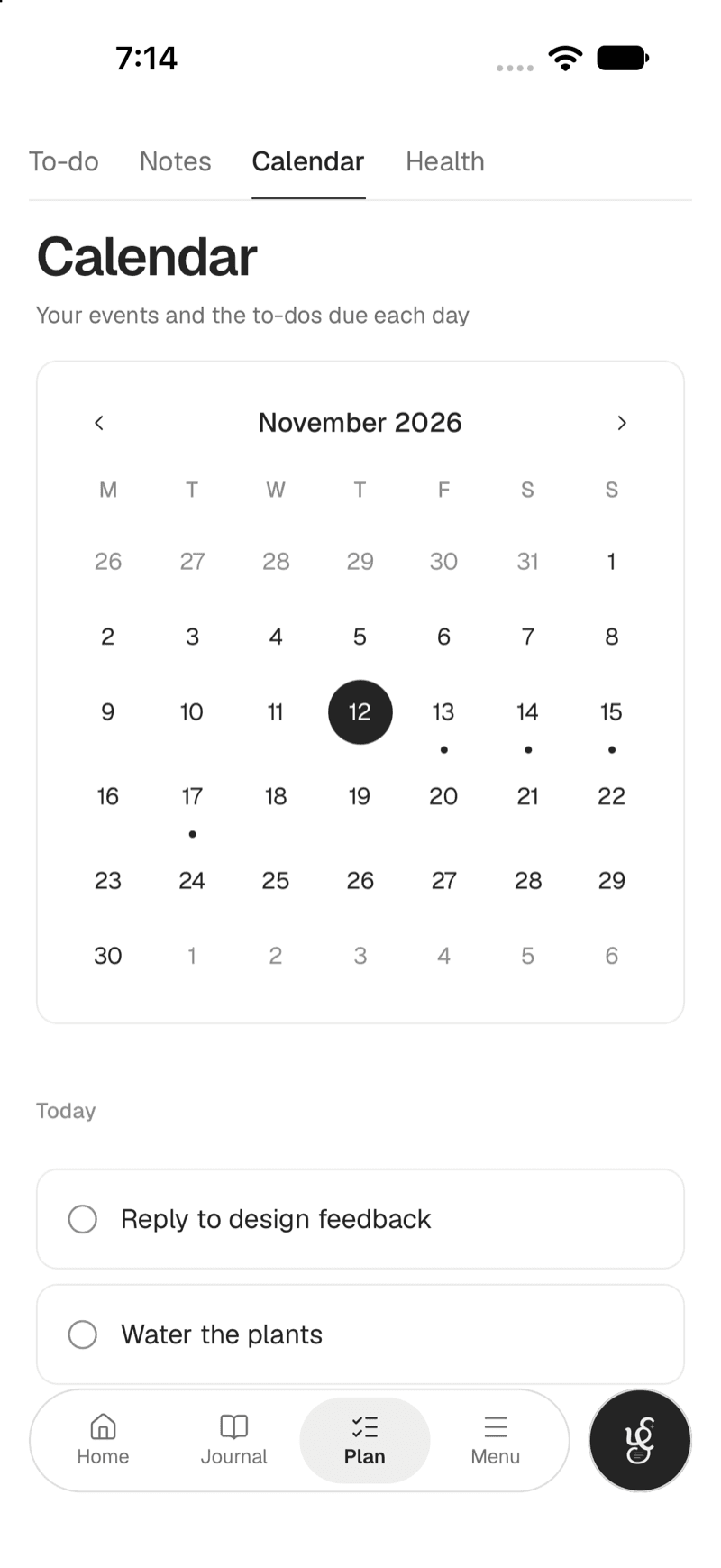
Your tasks, laid over your month.
Tasks with a due date appear beside your events on the calendar. Switch them off any time.
- Month, week, day and agenda views
- Tasks beside your events
- A dot marks the days with something due
Keyboard first
Never reach for the mouse.
Shortcuts work anywhere in the app, except while you are typing in a box.
Questions
More answers are on the FAQ page.
What can repeat, and how?
Daily, weekly or on the 2nd Wednesday, for example. When you finish one, the next appears.
Can I see my tasks on a calendar?
Yes. Tasks with a due date appear beside your events on the calendar, and you can toggle them off any time.
Are there keyboard shortcuts?
Yes. Q adds a task, G then T goes to Today, 1 to 4 set the priority and E edits the focused task.
Does search find my tasks?
Yes. Universal search looks across your tasks, notes, journal and chats from one box. Press ⌘K anywhere.
Keep exploring
The rest of the workspace.
Start with tasks.
Free to start, with AI only when you want it. Everything you write stays in your workspace.